trending wheels
1.What Is Spin the Wheel?
A slick wheel spinner for when you just can't decide. Add your options, spin, and let the wheel pick for you — fair, fast, and surprisingly fun.
2. How to Use This Spinner?
Using Spin the Wheel is simple! Just add your options, click the spin button, and watch the wheel do the rest. It's a great way to make decisions quickly and have some fun in the process.
3. A Complete Guide to the Editor Panel
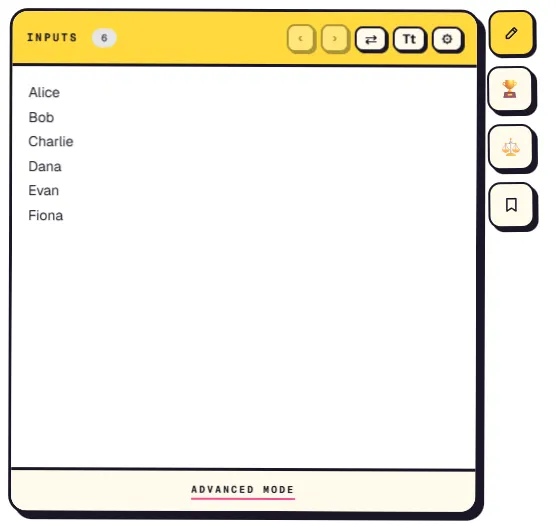
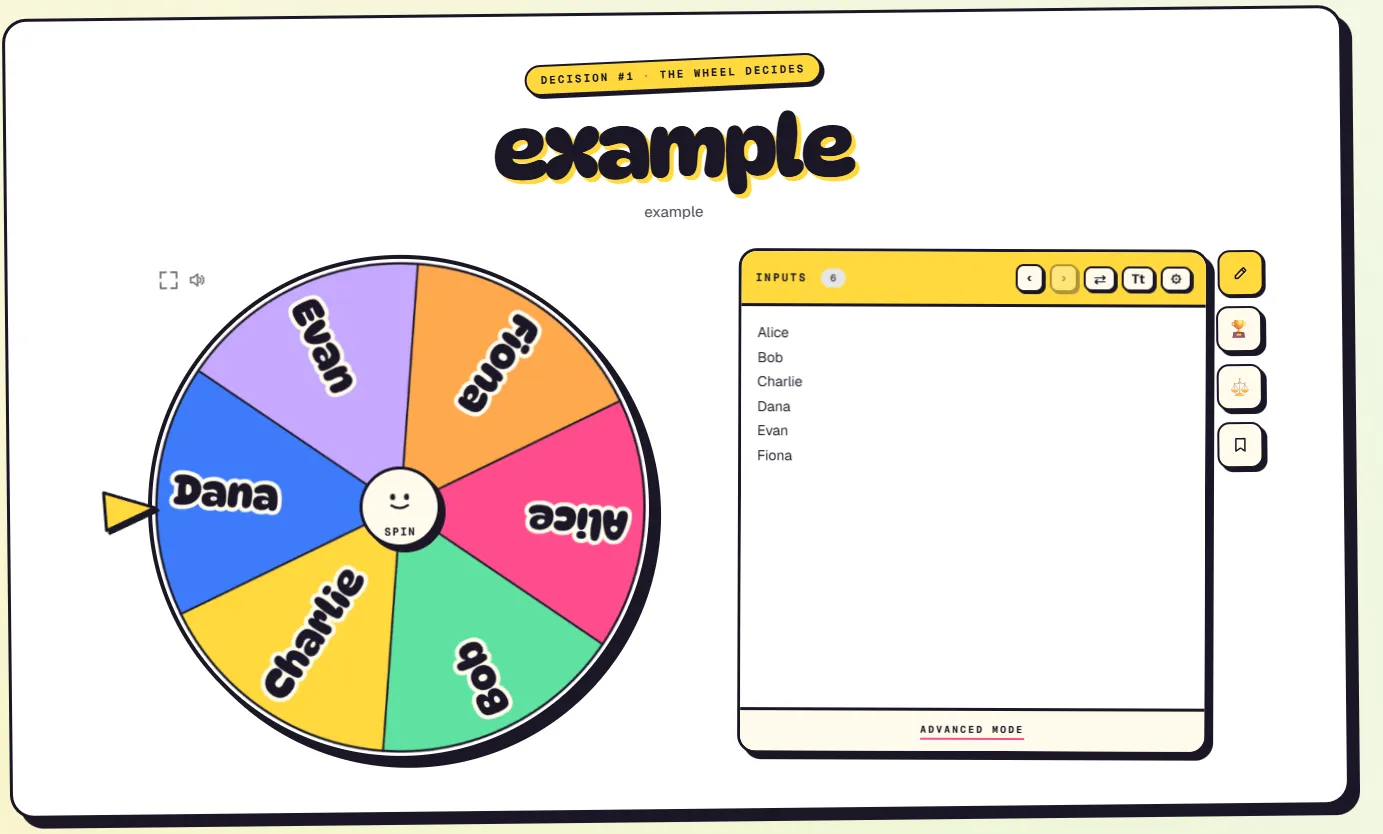
The Editor Panel is the box located on the right side of the wheel. All main settings can be accessed from here, including managing participants, modifying wheel options, adjusting spin speed, and customizing various other features.
Below, you will find a complete explanation of each button and feature available to help you better understand how they work.
Top Toolbar — Your Daily Controls

At the top of the Editor Panel, there is a toolbar containing several buttons to help you manage the wheel more efficiently. Below are the functions of each button from left to right.
- Undo / Redo — Helps you undo or restore changes that were recently made. This feature is useful if you accidentally delete data, change the order, or make other modifications that you want to revert back to their previous state.
- ⇄ Shuffle — Randomizes the order of the data within the wheel and the Text Editor with a single click.
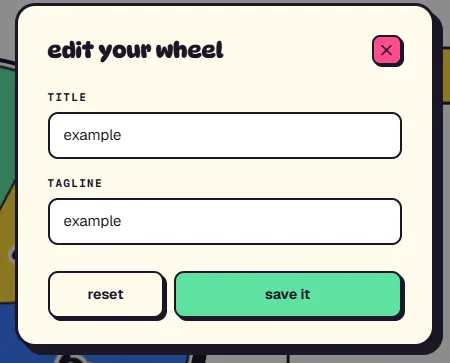
- Tt Edit Title — Used to change the wheel title and description displayed at the top of the page.
- Example 1
- Example 2
- ⚙ Spin Settings — opens the Spin Settings modal, explained next.
Spin Settings Modal (⚙)
Click the gear icon to control how the spin animation looks and feels:
- Surprise Spin — when ON, the wheel adds a little extra burst right before it stops, pretending to lock onto one option before jumping to the real winner. Great for extra suspense.
- Mysterious Spin — when ON, the names on the wheel are hidden behind question marks (❓) during the spin. The winner is only revealed after the wheel finishes — perfect for blind picks.
- Spin Duration (1s → 30s) — how long the wheel takes to finish. Short for fast decisions, long for maximum drama.
- Spin Speed (Level 1 → 10) — how aggressively the wheel accelerates and whirls. Independent from duration: a long slow spin feels calm, a long fast spin feels intense.
The Editing Area — Two Modes
The big white area below the toolbar is where you actually edit your options. Switch between modes using the link at the very bottom of the panel.
Text Mode (default): a simple textarea where each line equals one option. Type, paste from a spreadsheet, or delete lines — whatever feels natural. The wheel updates in real time as you type, and changes are auto-saved when you click outside. Best for quickly building a list or making bulk changes.
Advanced Mode: a richer, row-by-row editor. Each option becomes its own card with extra controls — rename inline, lock 🔒 (so shuffle can't move it), delete 🗑, drag the handle ≡ to reorder, or use the input at the bottom to add more options. The editor also warns you if you accidentally pick a duplicate name. Best for fine-tuning a list.
Side Buttons Next to the Panel
The square buttons next to the panel (or above it on mobile) switch what the right panel shows:
- Pencil (yellow) — show the Editor panel described above.
- Trophy 🏆 (pink) — show the Results panel: a running history of every winner from this session, with a clear button to wipe the list.
- Scale ⚖️ (green) — show the Weights panel, where you can make some options more likely to win than others (1 to 10 — higher means a bigger slice). A pink dot on the icon shows how many options currently have a non-default weight.
- Bookmark — save the current wheel to "My Wheels" so you can come back to it later. The icon flashes a green checkmark to confirm the save.
Bonus Controls Around the Wheel
- Spin button — the animated face in the center of the wheel. Click it, or drag the wheel itself for a manual flick spin.
- Fullscreen button (top-left of the wheel) — expands the wheel to the full screen, great for parties and shared displays.
- Volume button — opens a slider to adjust tick and winner sounds, or click the speaker icon to instantly mute.
That's the whole editor panel — type a list, tweak the feel, and let the wheel decide.